
How to Access Discussions
- Click on [Collaboration] on the navbar and select [Discussions].
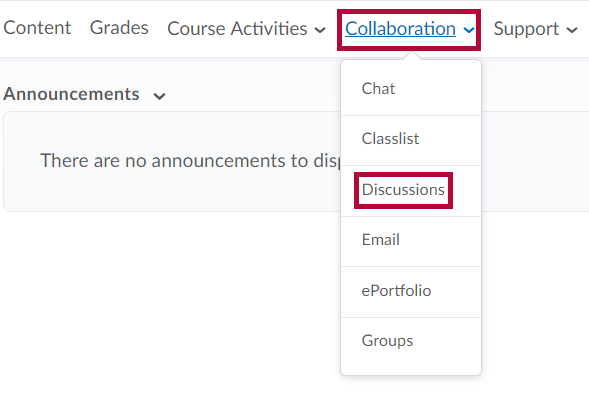
- The Discussions List screen appears.

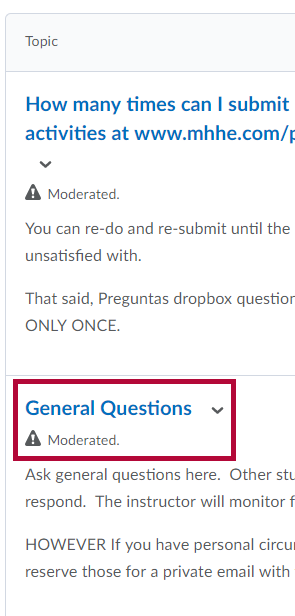
- Click on the desired discussion topic link, and the discussion threads will appear.
- To search within the topic for a particular discussion post, enter the search topic in the Search box and click the magnifying glass to start the search.

Participating in Discussions
- Click the [Start a New Thread] button to begin a new threaded discussion.

Or click on [Reply to Thread] after clicking on an existing thread.

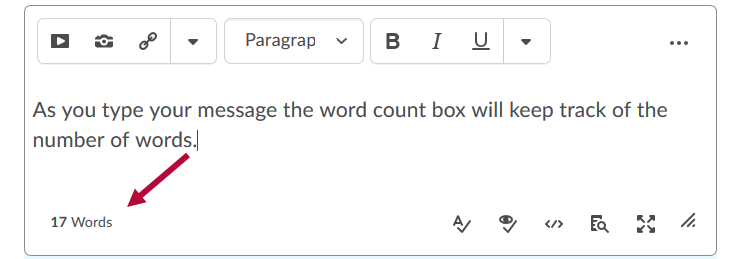
- Enter a subject and the body of your discussion post. (It is best to not edit the Subject if you are replying to a post). A word counter dynamically tracks the number of words typed in your post and it also appears next to posts you have created in the Discussions Reading View and Grid View. You can view the word count for your posts only.
- Check the [Subscribe to this thread] checkbox if you want to receive notifications when the thread has new posts.

- You can also add an attachment to this discussion post by clicking the [Add attachments] link, then click [Upload] to upload a file (or add a video or audio recording) from your device.

- OR click [Choose Existing] to upload a file from OneDrive or ePortfolio.


- OR click [Choose Existing] to upload a file from OneDrive or ePortfolio.
- When you have completed entering all the data for the post, click the [Post] button.



See also Grid View and Reading View and Threaded and Unthreaded Posts.