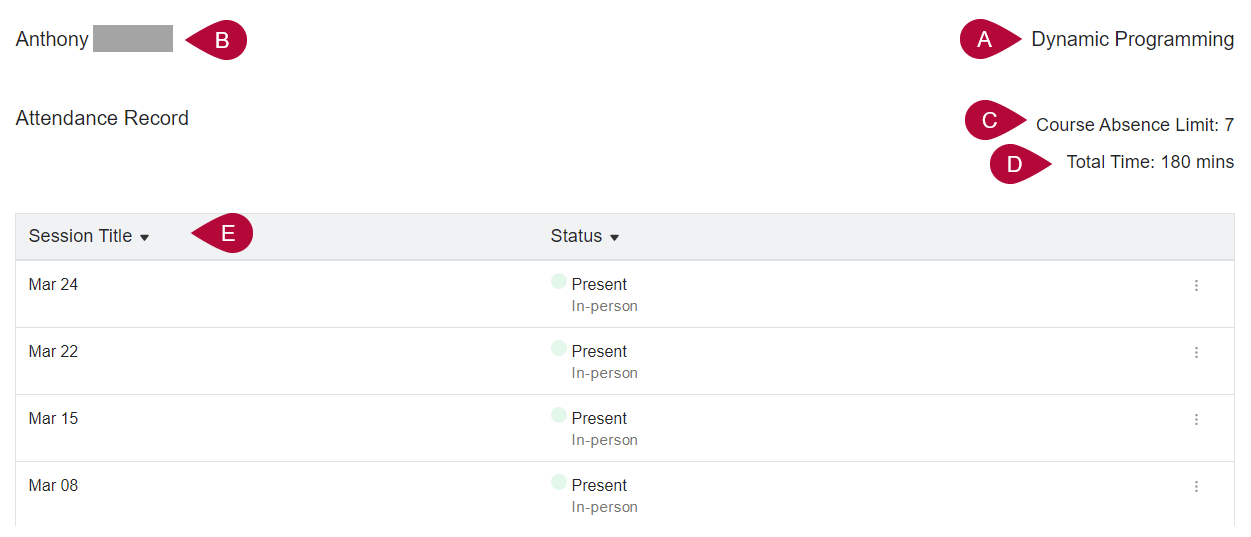
Qwickly Attendance is a tool that your instructor may use to track attendance for your class. Your instructor may take attendance for you, or your instructor may ask you to check in using your own device. If your instructor is using Qwickly Attendance, you can view your attendance record for your class.
Accessing a Qwickly Check-In
If your instructor has asked you to check in using your own device, log in to D2L and follow these steps to access the Qwickly Check In session your instructor has started.
- Click [Course Activities] on the D2L Navbar and choose [Qwickly Attendance 1.3].
- After clicking [Attendance], you will be automatically directed to the Check-In Screen which will vary depending on the type of Check-In the instructor has started.
- Student view of an active Check-In session with a timer.
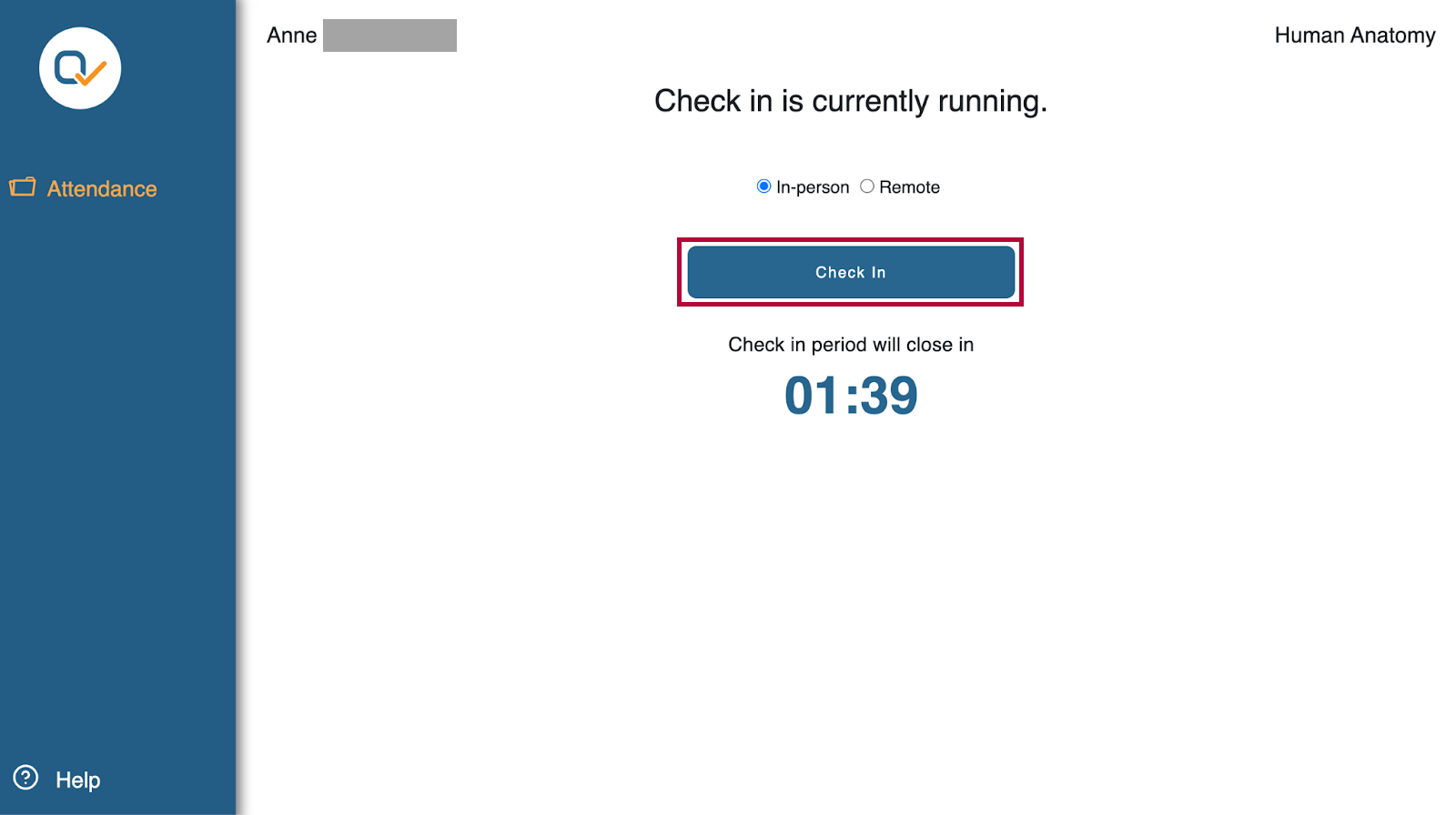
- Student view of an active PIN Check-In session with a timer.
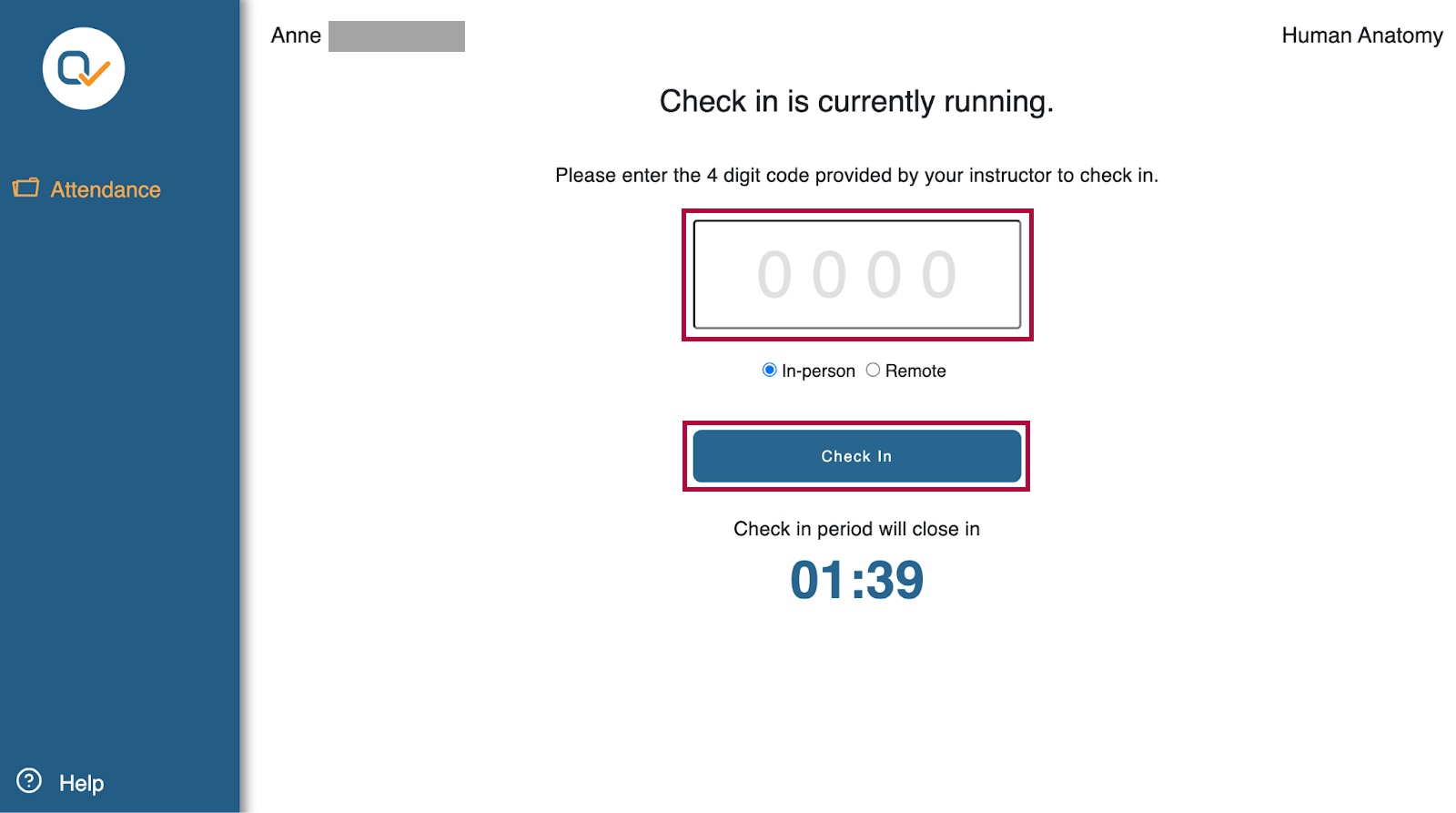
- Student view of an active Check-In session with a timer.
- Enter the 4-digit pin code if your instructor has required it, then click [Check In].
Viewing Your Attendance Records
Click [Course Activities] on the D2L Navbar and select [Qwickly Attendance 1.3] to view your attendance records for the courses in which your instructors are using Qwickly to track attendance. The Student View will display the following:
- Course Name
- Student Name
- Course Absence Limit
- Total Time of Instruction (If enabled)
- Sessions — A list of attendance dates recorded for the course, showing each session's attendance status for the student and any associated public comments.