
The LSC-Online New Student Orientation will guide you through everything you need to know to begin your journey at Lone Star College Online. Before you can meet with an advisor to enroll in LSC-Online courses, you must complete the LSC-Online New Student Orientation.
You will complete the LSC-Online New Student Orientation through D2L Brightspace, Lone Star College’s Learning Management System.
NOTE: This New Student Orientation is only required for new students of LSC-Online.
Log into D2L Brightspace from the myLoneStar Portal
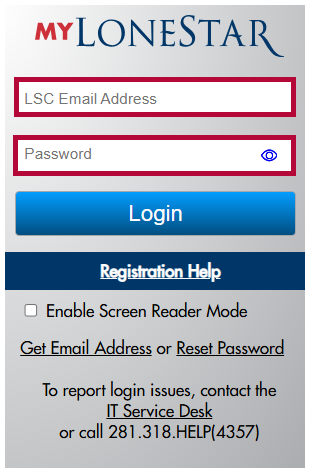
- Log into myLonestar using your Lone Star College username and password.
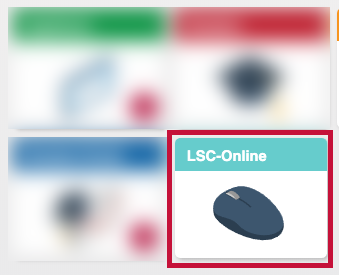
- Click the [LSC-Online] tile.
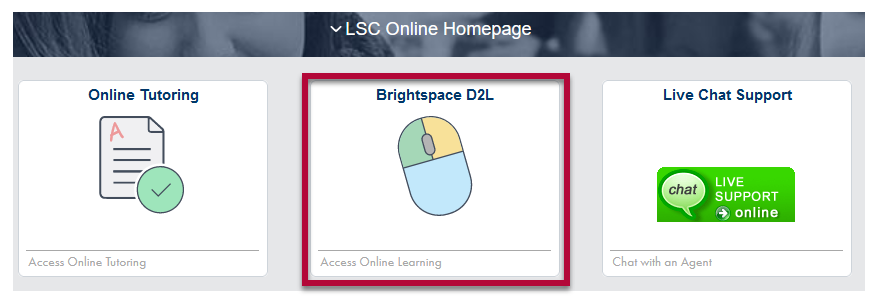
- Click on the [Brightspace D2L] tile. The D2L Homepage will open in a new tab.
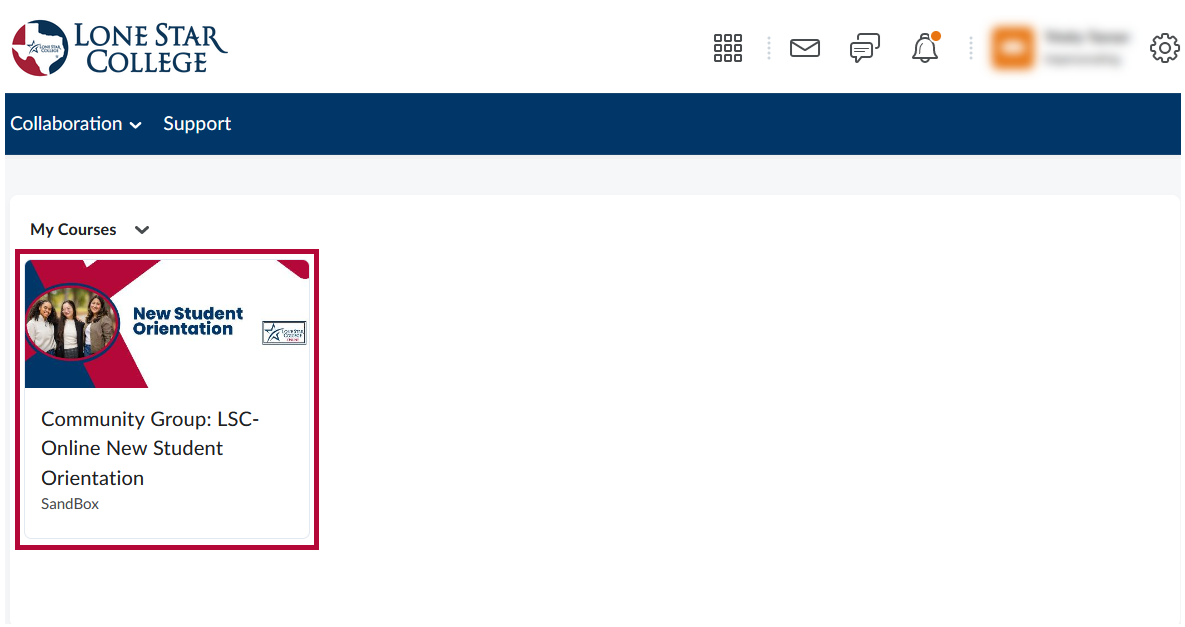
- You will now be on your D2L homepage, where you will see LSC-Online New Student Orientation listed in your course list. In the My Courses section, click [New Student Orientation].
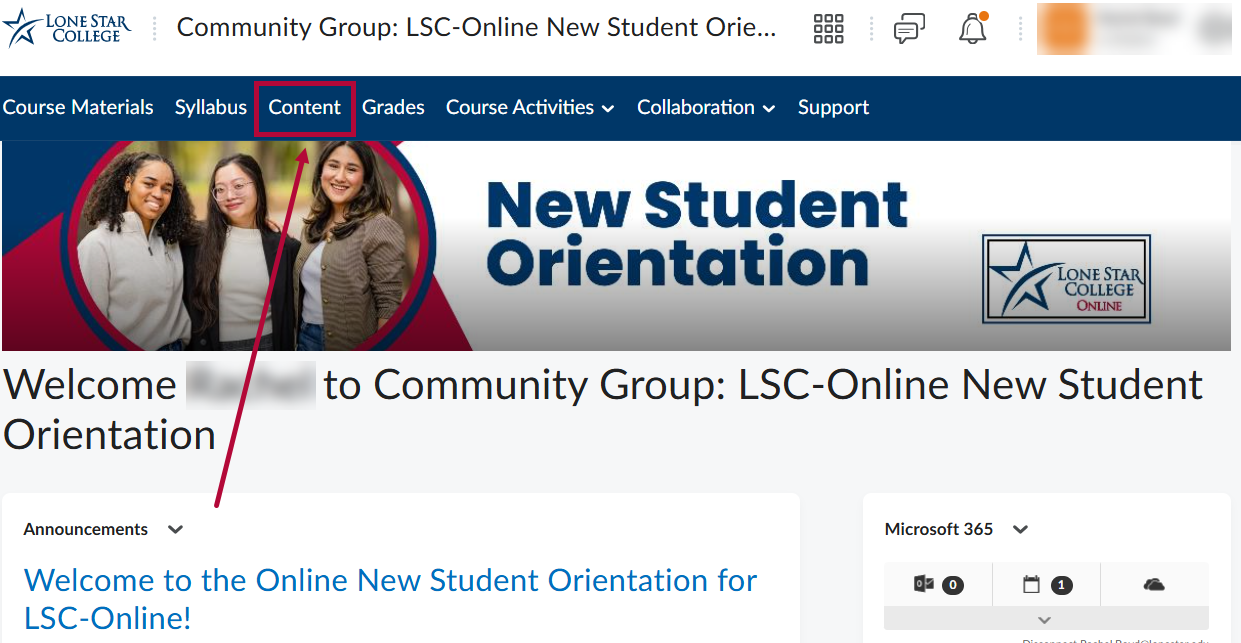
- On the D2L course Navbar, click [Content].
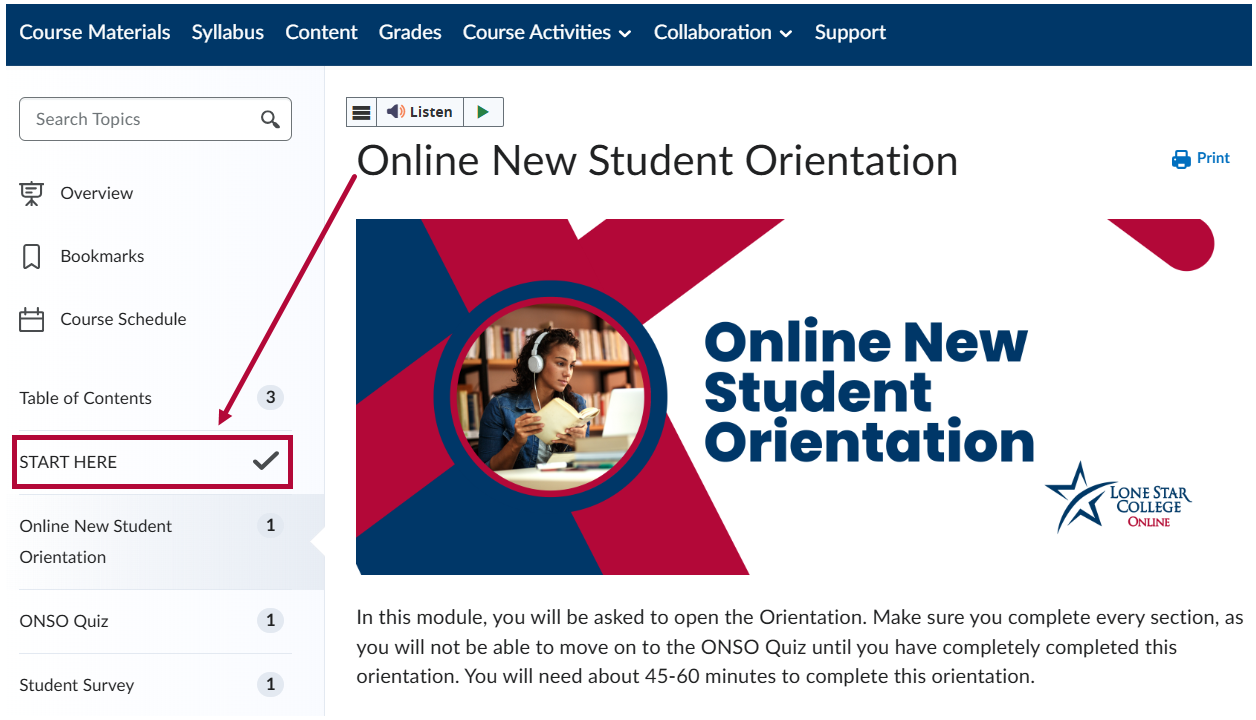
- Click [START HERE] in the Table of Contents to begin your orientation.
IT Service Desk
If you cannot access myLoneStar or D2L, please contact the Lone Star College IT Service Desk for assistance. The IT Service Desk provides support for technical issues and can escalate tickets to other departments when needed. Service Desk agents can help troubleshoot login problems, restore account access, and resolve other technology-related issues that may affect your ability to use Lone Star College resources.